Set up RTO Tableside on an Android phone or tablet
Turn a phone or tablet into a dedicated pay-at-the-table device. One scan installs RTO Tableside, locks the device to it, and keeps it up to date on its own.
This erases the device. Setup starts from a factory reset, so use a new or spare
phone or tablet, never one with someone's personal data on it. You need Android 9 or newer and
Wi-Fi. Pax card terminals don't use this page; they come set up.
Four steps, about ten minutes
- Factory-reset the device Settings → System → Reset options → Erase all data. A brand-new device is already reset. When it restarts, do not sign in to a Google account.
- Tap the Welcome screen six times On the very first screen, tap the same blank spot six times in a row. A QR code scanner opens. If it asks for Wi-Fi first, connect.
- Scan the code on this page The device downloads RTO Tableside and sets itself up. This takes a few minutes; leave it on Wi-Fi and plugged in.
- Sign in with your store login Use the username and password from your RTO welcome email. Staff then log in with their employee number, as on the register.
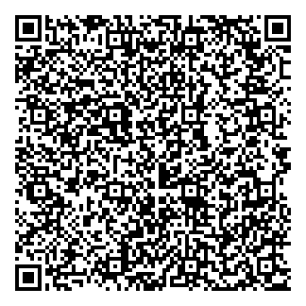
Scan from the device being set up. You can show this page on another phone or computer, or print it.
It stays locked
The device opens straight into RTO Tableside and stays there: no home screen, no other apps. Tap-to-pay still works.It updates itself
New versions install on their own while the device sits on the employee login screen, so nobody has to remember.You can undo it
To use the device for something else, RTO support can release it from RTO Tableside's settings with no reset needed.Stuck on a step? Call (866) 932-4782 and we'll walk you through it.